




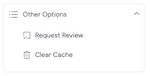
 Atom.com users have many different settings. Some are universal across a portfolio, and others are individually set for each domain name. One particular setting I never understood was “Clear Cache.” This option sits under the “Other Options” heading in a user’s control panel. I had been curious about it but never understood the need for it.
Yesterday morning, I updated the price of a domain name I thought was underpriced. I increased it a few thousand dollars and visited the landing page to make sure it was showing up correctly. Strangely, the original price first flashed on the landing page and it then changed to the updated price. I checked on an incognito browser and another browser I don’t use and the same thing happened. I did this multiple times, and each time, the old price briefly showed before flipping to the higher price.
I wondered what was happening, and I recalled the “Clear Cache” setting I had never used. I went back to my control panel, selected the domain name, and I clicked the Clear Cache button. Voila. That seems to have fixed the glitch that was causing the old price to show.
I am unsure how long it would have taken for the old price to have completely disappeared from the landing page had I not cleared the cache, but I figured I would use that option to expedite its removal from the landing page. I presume this option might also be helpful when changing out a logo or making any other changes to a landing page on an Atom-listed domain name.
If you’re changing the prices on your domain names at Atom, particularly if you are raising your prices, you may want to hit the clear cache button so the landing page quickly reflects the current price without referencing the prior price.


Atom has always had various strange cache issues. Things I’ve only seen happen on Atom, nowhere else. Not sure why.
Press Ctrl + Shift + Delete (Windows) or Cmd + Shift + Delete (Mac).
Do all times
Clear the cookie and cache files.
I do this every week
And do a reset network too.
And defrag the C the C drive
Do a restore on the computer.
Do this every month and your computer will run fast .
And power down and after a minute power up your router every week.
I reboot my router every Saturday nite at 10pm because the traffic is slower .
This removes all the cookies!!!
Do this on your phoneS too
So there doesn’t seem to be a bulk “clear cache” if your updating multiple names WTF?
It will resolve itself, but if you need it to be done immediately, you can clear cache. It’s never really been an issue for me, but I wanted to ensure one name got updated without reverting ASAP.